

Sometime ago I wrote a post about exporting a character from Dragonbones into Spine Pro.
Now it will be the other way around. Exporting from Spine to Dragonbones and facing
possible problems that might occur.
Export From Spine
First export spine json from the spine export window. Enable Texture atlas and hit export.

Spine will export 3 files for you.
- atlas
- json
- png (of the spritesheet)
Import to DragonBones
Next, drag and drop the json file into DragonBones.
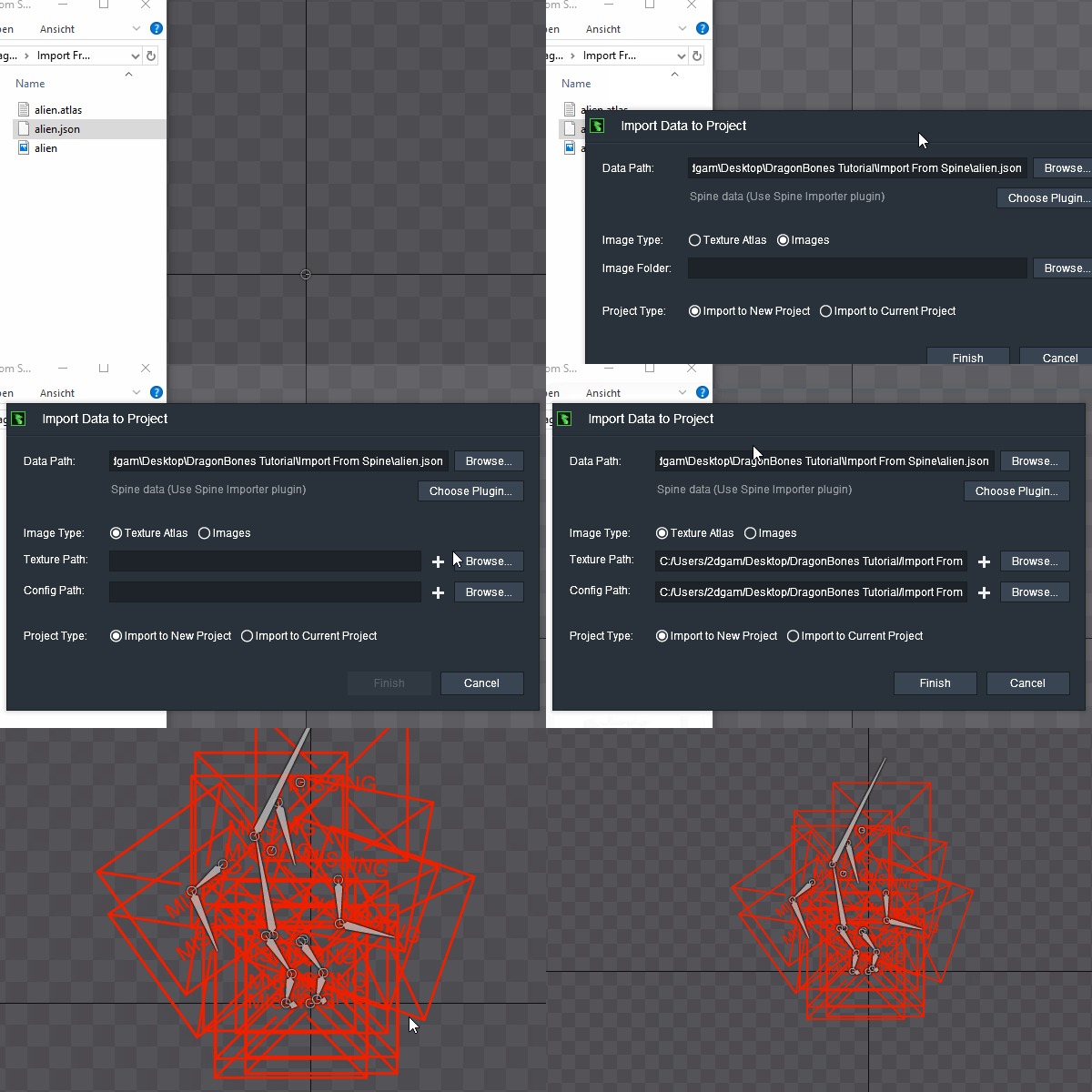 |
A new window will pop up giving you some import settings. Here you have to choose Texture Atlas.
Then browse the location of the texture atlas. Click on Finish.

But what's that? Missing Images. Again !
This is the same problem with importing from DragonBones into Spine. For some reason the communication between the two programs regarding the texture atlas doesn't work well.
Fix
 There is only way to resolve this issue. Head over to spine. Find the "Images" tag on the right panel. Once you click on this tag on the bottom you will see 2 buttons. Refresh and open. Click on Open.
Next your explorer will show up with the directory containing all the images used in this project.
Copy all images here and paste them where your DragonBones project is located.
When you then return to DragonBones you will see that the missing images red box has disappeared and you have successfully imported your character from Spine to DragonBones.
 |
| sucessfully imported |
Thanks for reading. Give a Like below if you found this helpful.
its no another way to solve the import png data to dragon bones?
ReplyDeleteFor now it's the only way. However while Dragonbones hasn't been updated since a while spine regularly receives new updates so things might change. I will update the blog or make a new post about it if there is another way.
ReplyDelete